Chart Panel
Handling a Panel
- Move — drag the top of the panel (its header).
- Resize — drag the bottom-right corner. A panel cannot be made smaller than the size it was saved with.
- Toggle a series — click a legend item to show or hide that series.
- Auto-refresh indicator — when a panel has its own refresh interval, a countdown ring appears in its header; the interval can be changed or turned off from that ring.
Panel Menu
Click the  icon at the top right of a panel to open its menu.
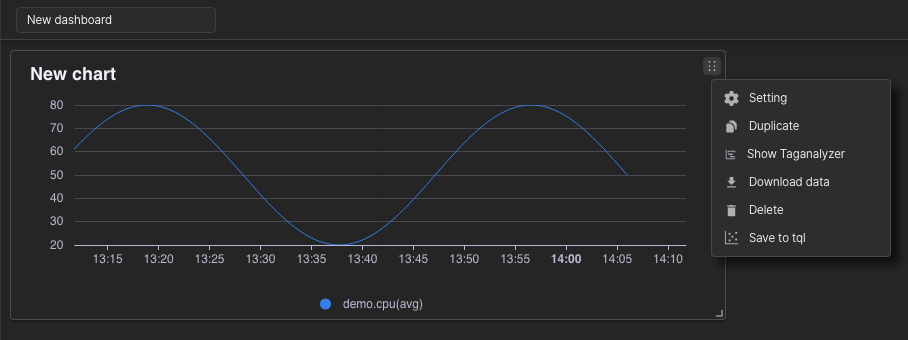
- Setting — edits the chart settings. (See “Chart Settings”.)
- Duplicate — copies the chart. The copy is placed directly below the original.
- Show Taganalyzer — opens the contents of this chart in Tag Analyzer. Since v8.0.49 Shown only for panels that use a TAG table.
- Download data — downloads the data queried by this panel as a CSV file.
- Delete — removes the chart panel.
- Save to tql — saves the TQL the panel uses internally as a file. The dialog takes a file name and an Output type (
CHART/DATA(JSON)/DATA(CSV)), and individual series can be selected. Not available for the Tql chart, Geomap, Text and Video types.
Depending on the chart type, the menu also contains:
- Use zoom control (Geomap) — turns the map zoom control on or off directly.
- Synchronization, Child board, Fullscreen (Video) — see “Video Panel”.
Per-Panel Time and Distance Range
Time tab
The Time tab of the chart settings screen sets a query range and refresh interval for that panel alone.
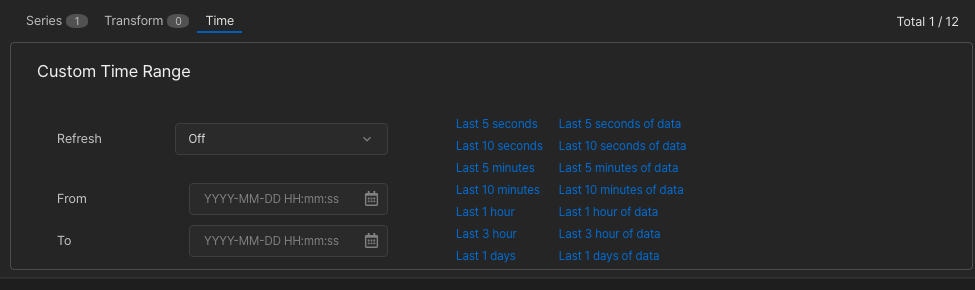
- Refresh — the auto-refresh interval for this panel. When set, a countdown ring appears in the panel header.
- From / To — the time range to use instead of the dashboard range.
- Quick Range — sets a frequently used range in one click.
If nothing is set, the panel follows the dashboard’s time range and refresh setting.
Distance tab
A panel that queries by distance shows a Distance tab instead of the Time tab.
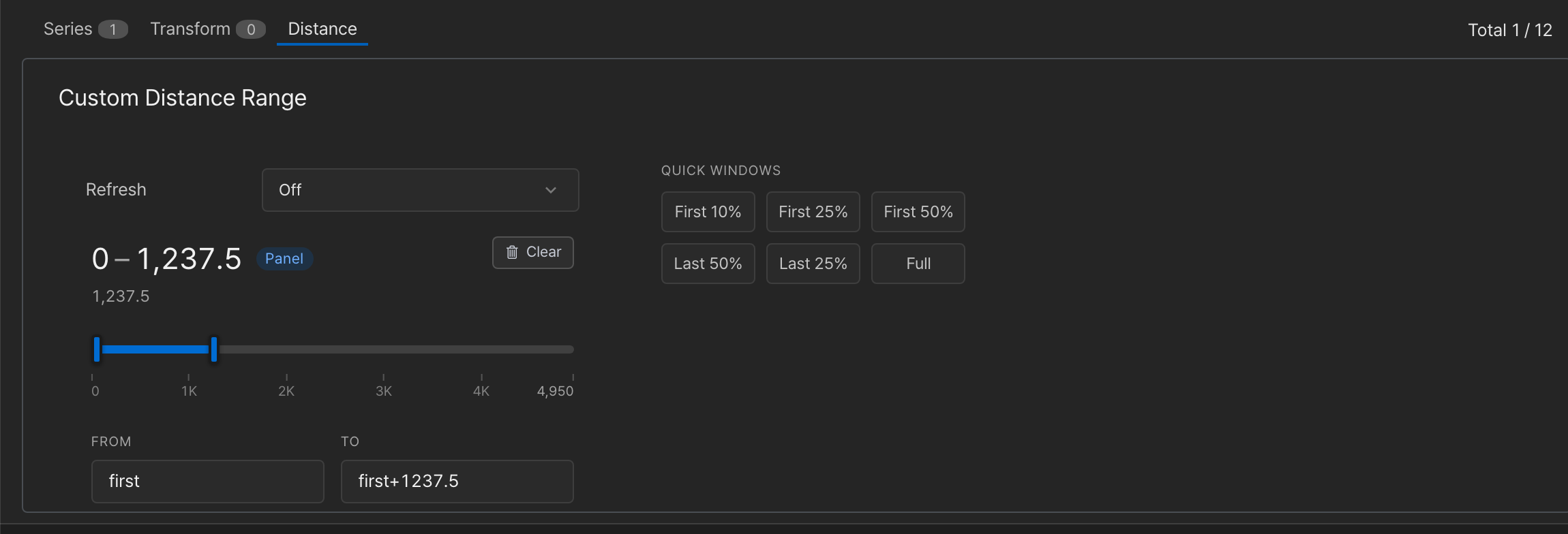
- Refresh — the auto-refresh interval for this panel.
- Range readout and badge — when this panel has its own range, the range is shown with a
Panelbadge. Otherwise the full data extent is shown dimmed with aBoardbadge, and the panel follows the dashboard’s distance range. - Slider · FROM / TO — set the range. Anchor expressions such as
firstorlast-1000also work. - Quick windows — First 10%, First 25%, First 50%, Last 50%, Last 25% and Full set the range in one click.
- Clear — removes this panel’s own range so it follows the dashboard range again. It is enabled only while the panel has its own range.
A panel with its own range keeps it even when the dashboard’s distance range is changed or cleared with Reset to default.
Last updated on