Video Panel
Overview
Selecting Video as the chart type plays camera footage in a dashboard panel. The playback position can be kept in step with the other chart panels, so data and video for the same moment can be read side by side.
※ The Video panel is for the neo-pkg-blackbox package. Video appears in the chart type list only when the package is installed, and cameras must be registered in blackbox first.
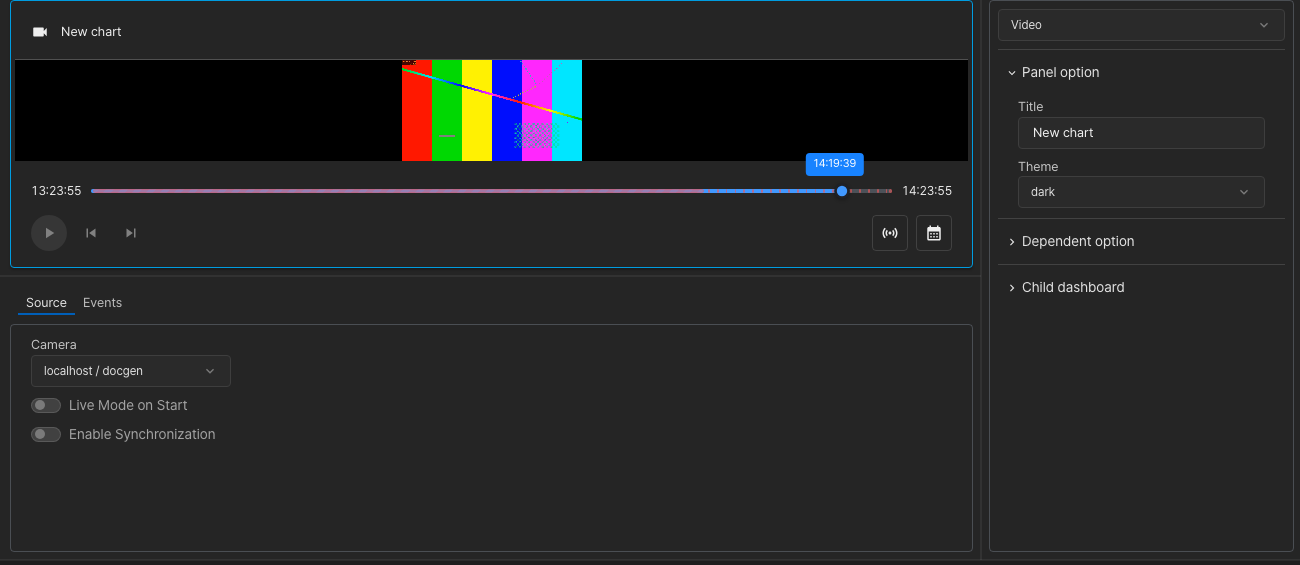
Source Tab
- Camera — the camera to play.
- Live Mode on Start — whether the panel opens on the live stream.
- Enable Synchronization — synchronizes this panel’s playback position with the charts.
Events Tab
Registers the rules used to surface camera events on the panel. Registered events appear as badges over the playback bar, and the list jumps straight to that moment.
Panel Options
- Panel option — the panel title and theme.
- Dependent option — the chart panels this video is kept in step with, and the colour of the synchronization marker.
- Child dashboard — links another dashboard file (
.dsh) as a child board.
Playback and Panel Menu
- Switch between the live stream and recorded playback.
- Seek by seconds, minutes, hours or frames, and jump to the previous or next recorded chunk. Gaps with no recording are drawn as empty stretches on the playback bar.
- The panel menu gains these items:
- Synchronization — turns time synchronization with the charts on or off.
- Child board — opens the linked child dashboard in a new window.
- Fullscreen — shows the video full screen.
With synchronization on, the video’s current time is drawn as a vertical line on the other charts and the synchronized panels are outlined.
Last updated on