SHELL
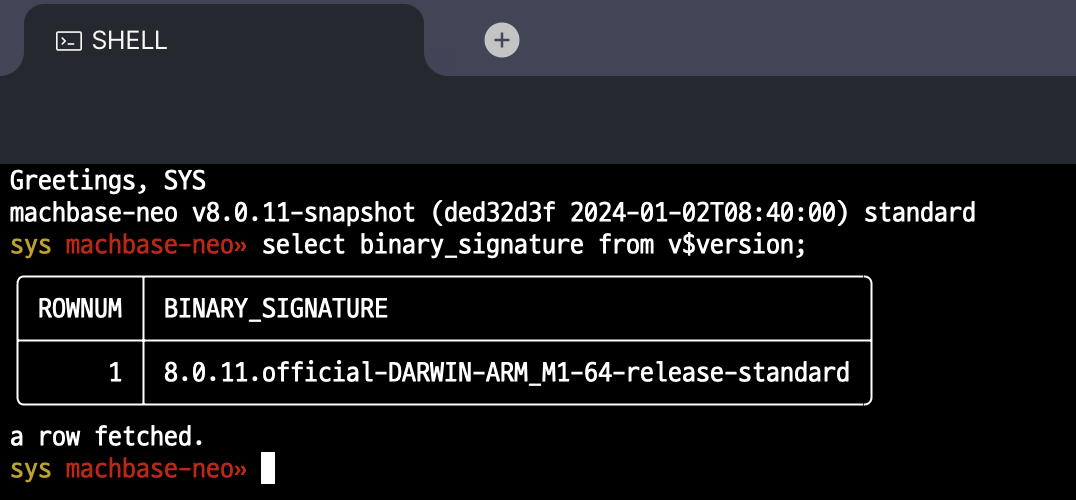
Remote Access via Web
- Select

SHELLon the new tab screen.

- The shell opens in the main editor area. Run SQL statements and machbase-neo shell commands at the
sys machbase-neoprompt.
Remote Access via SSH
SSH (Secure Shell) is a protocol used to securely log onto remote systems. It can use a password for authentication, but it also supports a more secure method called public key authentication.
machbase-neo provides an SSH interface for remote operation and administration. Users can access the SQL interpreter by using the SSH command as shown below.
- User: SYS
- Default password: manager
- Default port: 5652
$ ssh -p 5652 sys@127.0.0.1
sys@127.0.0.1's password: manager↵
Then after machbase-neo» prompt, users can query with SQL statements.
machbase-neo» select * from example;
┌─────────┬──────────┬─────────────────────────┬───────────┐
│ ROWNUM  │ NAME     │ TIME(UTC)               │ VALUE     │
├─────────┼──────────┼─────────────────────────┼───────────┤
│       1 │ wave.sin │ 2023-01-31 03:58:02.751 │ 0.913716  │
│       2 │ wave.cos │ 2023-01-31 03:58:02.751 │ 0.406354  │
                        ...omit...
│      13 │ wave.sin │ 2023-01-31 03:58:05.751 │ 0.668819  │
│      14 │ wave.cos │ 2023-01-31 03:58:05.751 │ -0.743425 │
└─────────┴──────────┴─────────────────────────┴───────────┘
SSH authentication with an API token
Since v8.7.1machbase-neo also supports authentication by passing an API token through the SSH password prompt. The API token is used instead of the database password. After authentication, the SSH shell runs with the database privileges of the user who owns the token.
After issuing an API token, start an SSH connection and enter the token at the password prompt.
$ ssh -p 5652 sys@127.0.0.1
sys@127.0.0.1's password: <API_TOKEN>↵
The base part of the SSH username must match the API token owner, case-insensitively. For example, when connecting as sys, provide a token owned by the sys user. An API token is a credential equivalent to a password; do not expose it in command-line arguments, shell history, or logs.
SSH without password
Generate a key pair: The first step is to generate a new key pair on the local machine (the machine you will log in from). This is done using the
ssh-keygencommand.You can skep this step, if you have already a key pair.
ssh-keygen -t rsaThis command will create two files in the .ssh directory in your home directory:
id_rsa(private key) andid_rsa.pub(public key).Copy the public key to the remote machine: The next step is to copy the public key to the remote machine.
To register the public key into the machbase server, follow the steps below.
Log in with the key pair: Now you can log in to the machbase server using your key pair. The SSH client will automatically use your private key to decrypt a challenge sent by the server, proving your identity.
ssh -p 5652 sys@127.0.0.1If everything is set up correctly, you should be logged in to the machbase-neo without being asked for a password.
Register ssh key from Web UI
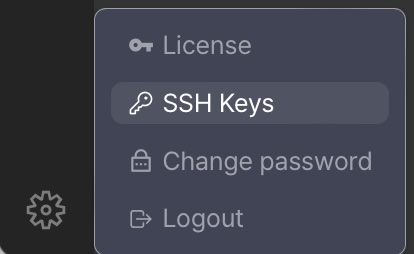
- Click the
 icon at the bottom of the left menu and select
 SSH Keys. Since v8.0.20
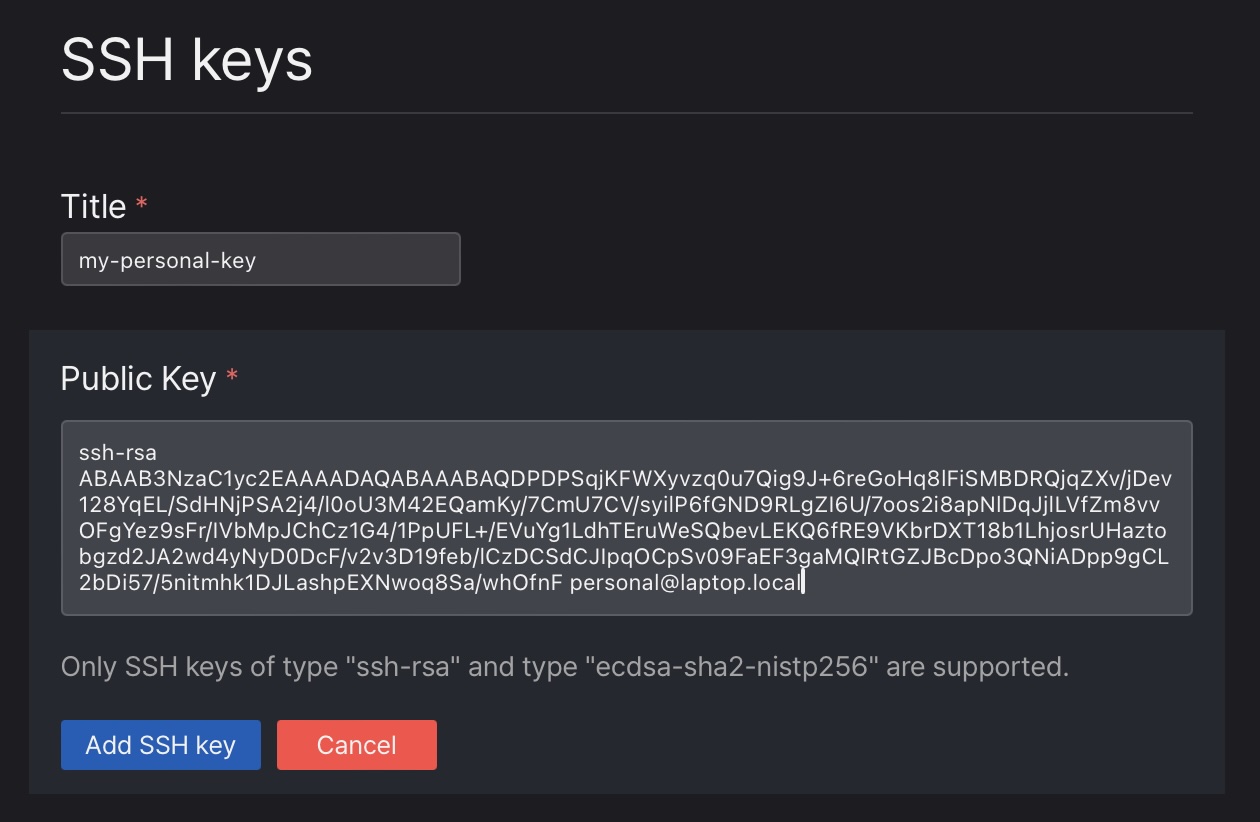
- Click
New SSH key, give the key a name inTitle, paste the whole public key intoPublic Key, then clickAdd SSH key.
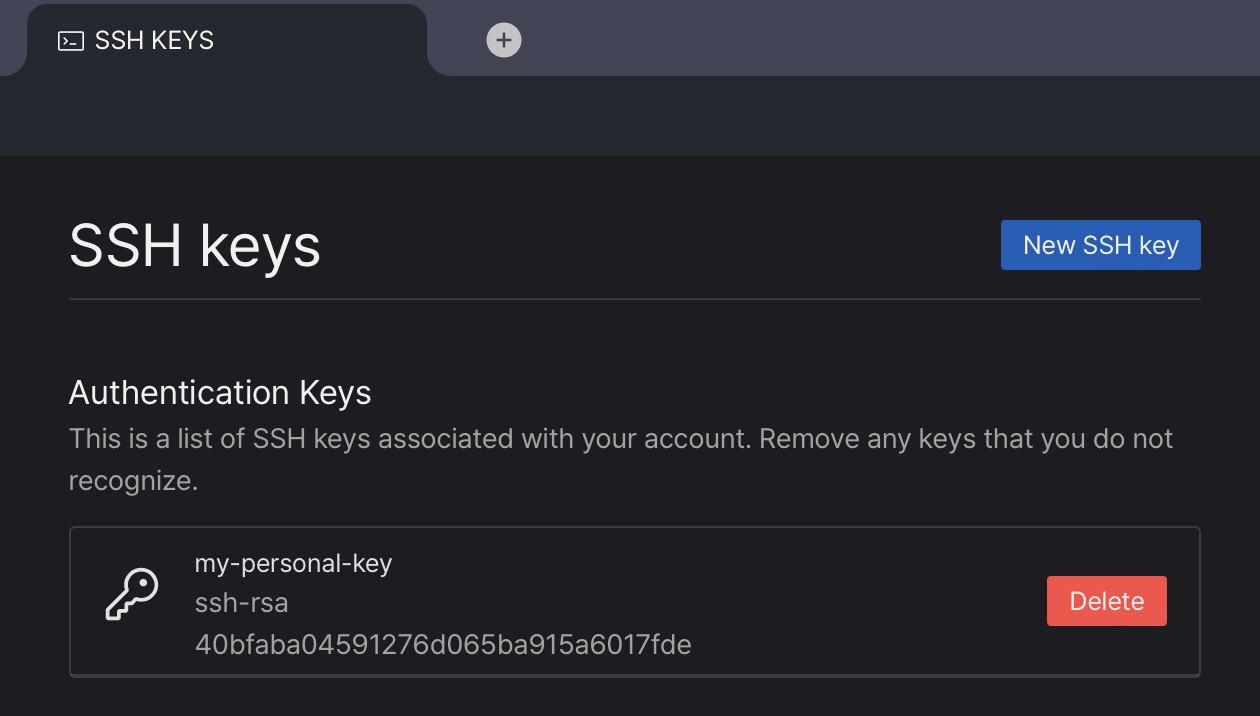
- The registered key appears in the
Authentication Keyslist. UseDeleteto remove a key you no longer use.
Register ssh key from shell command
Adding the public key to the machbase-neo server enables the execution of any machbase-neo shell command without the need for a prompt or password entry.
- Add your public key to server
machbase-neo shell ssh-key add `cat ~/.ssh/id_rsa.pub`- Get list of registered public keys
machbase-neo shell ssh-key listor
$ machbase-neo shell ↵

machbase-neo» ssh-key list
┌────────┬───────────────────────────────────────────┬─────────────────────┬────────────────────────────────────────────────────┐
│ ROWNUM │ NAME                                      │ KEY TYPE            │ FINGERPRINT                                        │
├────────┼───────────────────────────────────────────┼─────────────────────┼────────────────────────────────────────────────────┤
│      1 │ **DO NOT DELETE** machbase-neo server key │ ecdsa-sha2-nistp521 │ SHA256:osfeJKNiUV+a2bIdZPA92maMDI23xA/40gAFwqAfpyQ │
│      2 │ myid@laptop.local                         │ ecdsa-sha2-nistp256 │ SHA256:0IFv6KPDuNJe2s9PoqUBimreYAYih3sDKcxpCYpZCmE │
└────────┴───────────────────────────────────────────┴─────────────────────┴────────────────────────────────────────────────────┘- Remove registered public key
machbase-neo» ssh-key del <fingerprint>
SSH key deleted successfully.
Connect without password
$ ssh -p 5652 sys@127.0.0.1 ↵

Greetings, SYS
machbase-neo v8.7.1-snapshot (b55f8170 2026-09-10T05:43:13) standard
sys machbase-neo 2026-09-17 17:45:13
>
Execute commands via SSH
We can execute any machbase-neo shell command remotely only with ssh.
$ ssh -p 5652 sys@127.0.0.1 'select * from example order by time desc limit 5'↵

┌────────┬────────┬─────────────────────────┬───────────┐
│ ROWNUM │ NAME   │ TIME                    │     VALUE │
├────────┼────────┼─────────────────────────┼───────────┤
│      1 │ signal │ 2026-09-17 17:09:26.712 │ -0.033411 │
│      2 │ signal │ 2026-09-17 17:09:26.711 │ -0.185026 │
│      3 │ signal │ 2026-09-17 17:09:26.71  │ -0.344666 │
│      4 │ signal │ 2026-09-17 17:09:26.709 │ -0.508032 │
│      5 │ signal │ 2026-09-17 17:09:26.708 │ -0.670817 │
└────────┴────────┴─────────────────────────┴───────────┘
5 rows selected.
Security Considerations
While public key authentication is more secure than password authentication, it is important to keep your private key safe. Anyone who gains access to your private key can log in to any system that has your public key.