SQL
Select the SQL card on the new tab screen to open a new SQL editor.

SQL
Create table
The SQL editor is on the left and the result panel (RESULT, CHART) is on the right. Execution logs appear in the console at the bottom.
Copy the below DDL statement and paste it to the editor.
CREATE TAG TABLE IF NOT EXISTS example (
  name varchar(100) primary key,
  time datetime basetime,
  value double summarized
);
Click  at the top-left of the editor panel, or press
 Ctrl+Enter (Cmd+Enter on macOS) to execute the statement. Don’t forget the semicolon at the end of the statement.

Insert Table
Execute the statement below to write a single record of data.
INSERT INTO example VALUES('my-car', now, 1.2345);
Select Table
Execute the select statement below, it will show the result on the right tabular panel.
SELECT time, value FROM example WHERE name = 'my-car';
Use Named Args
The SQL editor supports named args such as :name and :value.
Set named arg values with a -- env: comment before the SQL statements.
This is useful when you want to reuse the same value across multiple statements or quickly change test values.
-- env: named.name='my-car' named.value=1.5432
INSERT INTO example VALUES(:name, now, :value);

SELECT * FROM example WHERE name = :name;
-- env: reset
In this example, name is set to 'my-car' and value is set to 1.5432.
The INSERT and SELECT statements refer to them as :name and :value.
Run -- env: reset to clear the named args configured in the SQL editor.
Settings specified with -- env: accumulate until -- env: reset is run.
--env: named.name=my-car
--env: named.time='2026-09-10 12:28:26.197719833'
--env: named.layout='YYYY-MM-DD HH24:MI:SS.mmmuuunnn'
SELECT * FROM example
  WHERE name = :name AND time=to_date(:time, :layout);

--env: named.new_value=9.876
UPDATE example SET value = :new_value
  WHERE name = :name AND time=to_date(:time, :layout);
--env: reset
Chart Draw
Insert more records by executing insert statement repeatedly.
INSERT INTO example VALUES('my-car', now, 1.2345*1.1);
INSERT INTO example VALUES('my-car', now, 1.2345*1.2);
INSERT INTO example VALUES('my-car', now, 1.2345*1.3);
Then review the stored ‘my-car’ records.
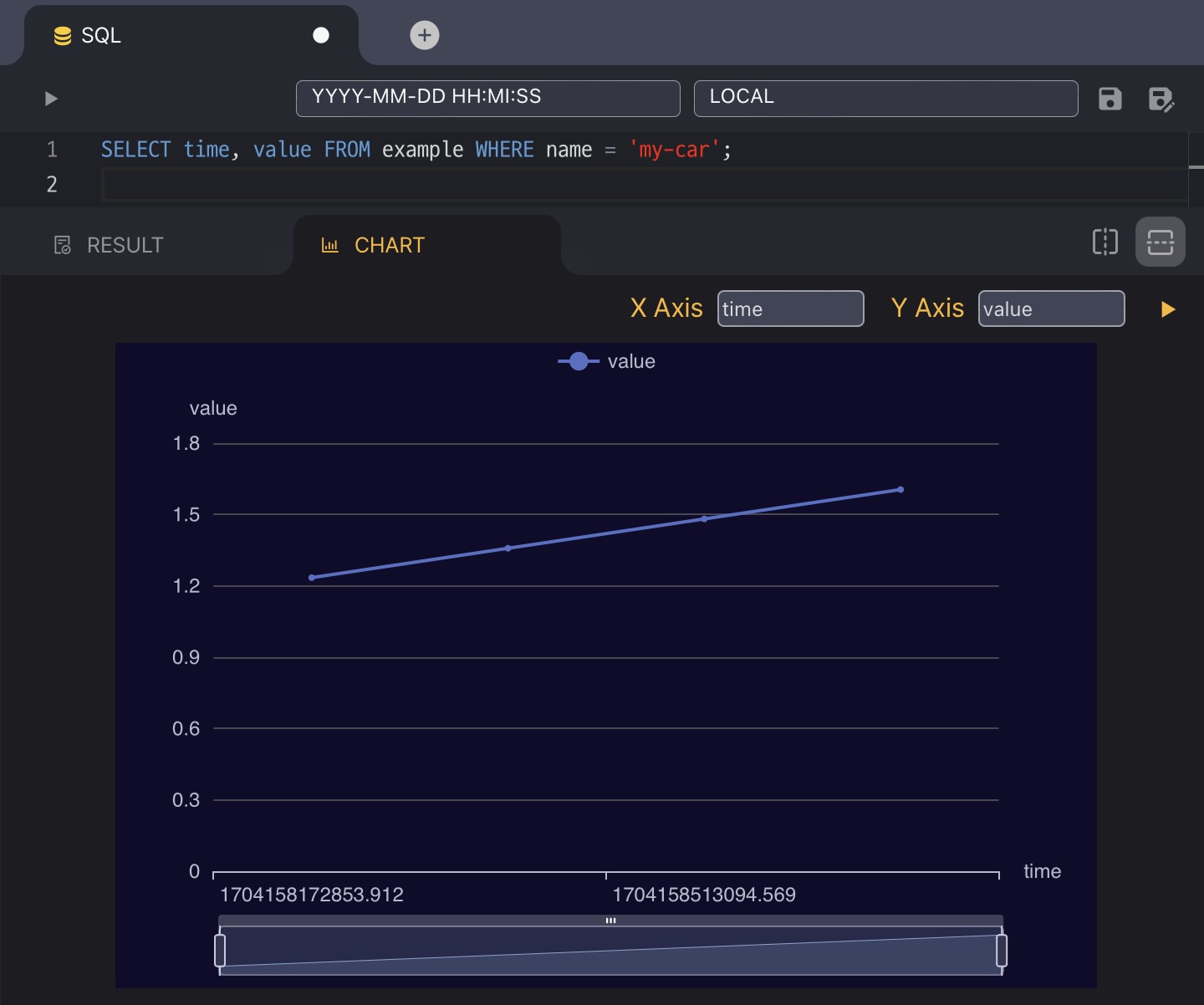
SELECT time, value FROM example WHERE name = 'my-car';
Click the CHART tab in the right panel to see the query result as a line chart. The first column is used for the X axis and the second for the Y axis; pick other columns in X Axis and Y Axis, then click the ▶ button next to them to redraw.
Download CSV file
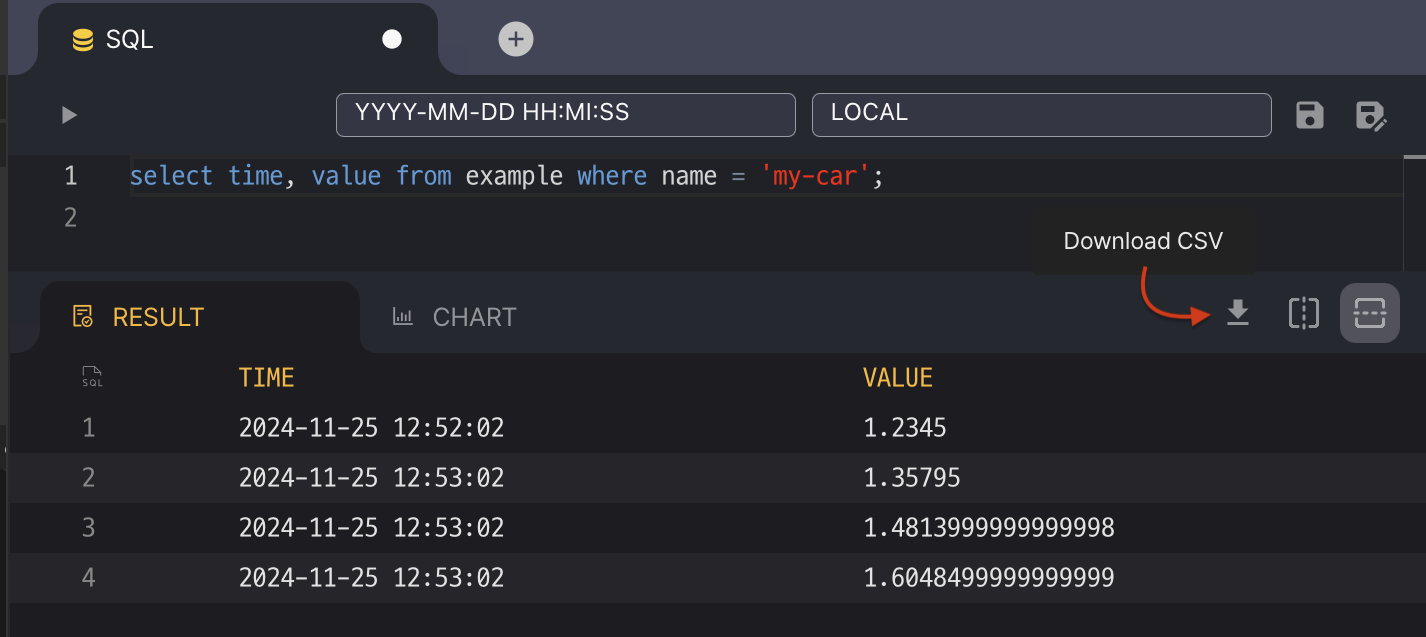
Click  at the top-right of the result panel to download the query result as a CSV file. The result table loads rows 50 at a time, but the CSV file contains every row the query returns, with a header row; time values follow the editor’s time format and time zone settings.
Delete Table
Delete records with a DELETE statement.
DELETE FROM example WHERE name = 'my-car';Or, remove the table if you want to create a fresh one.
DROP TABLE example;Non-SQL
show tables
Simplified command that queries M$SYS_TABLES table.
show tables;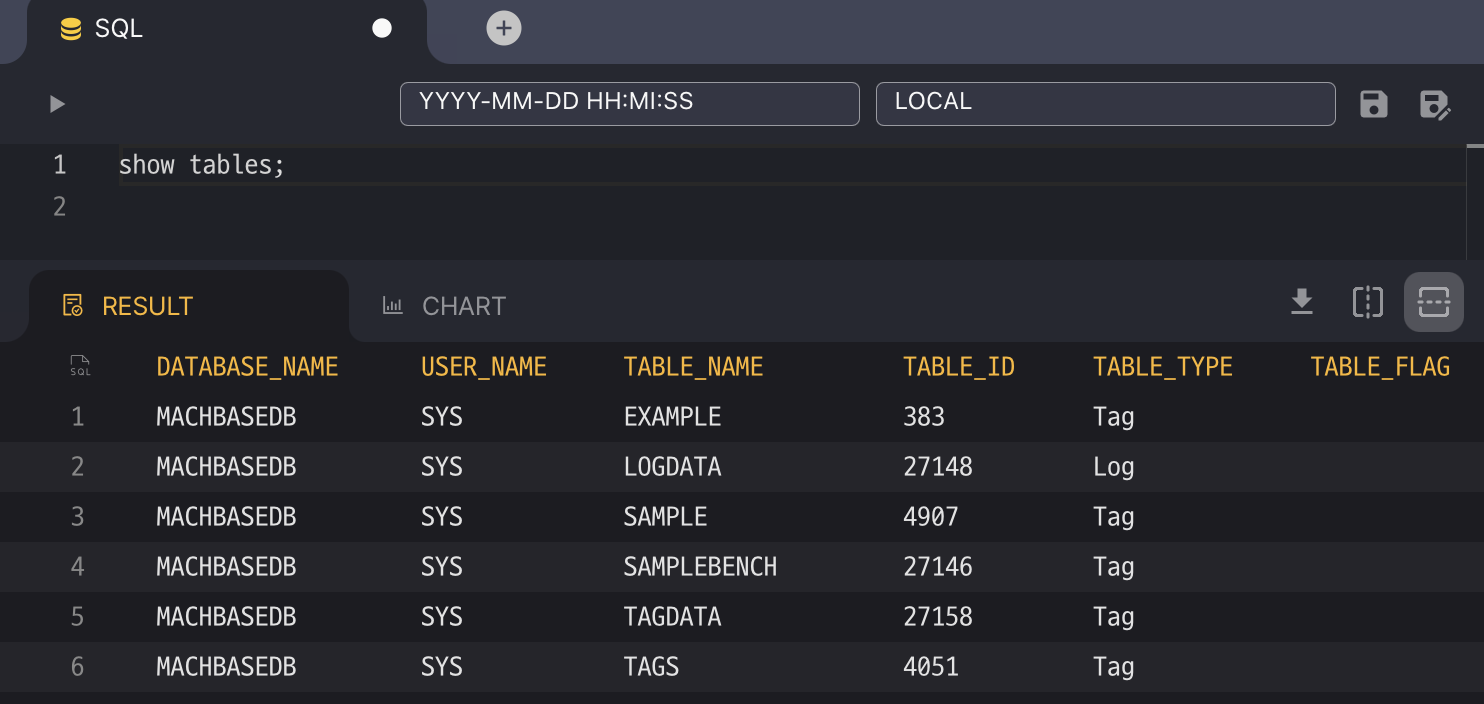
desc table_name
Describe table’s columns and related index.
desc example;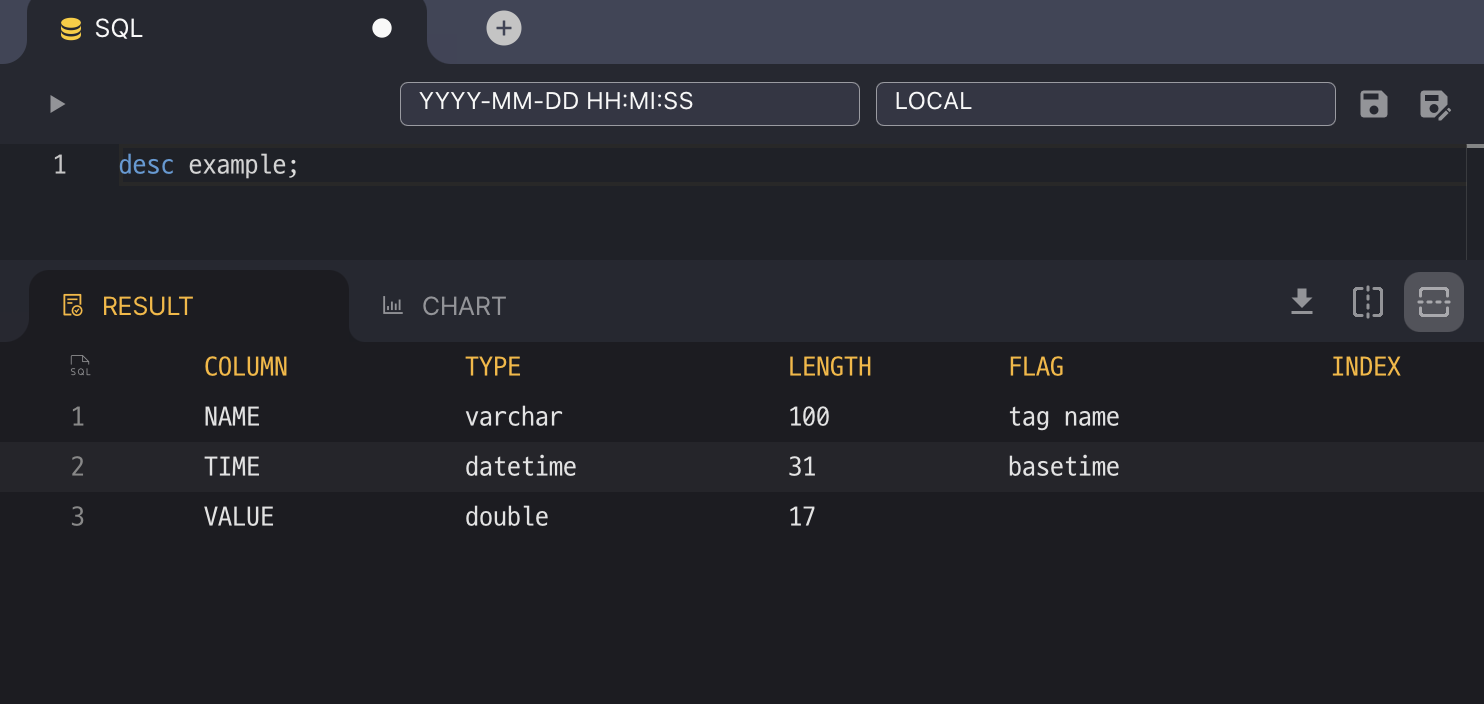
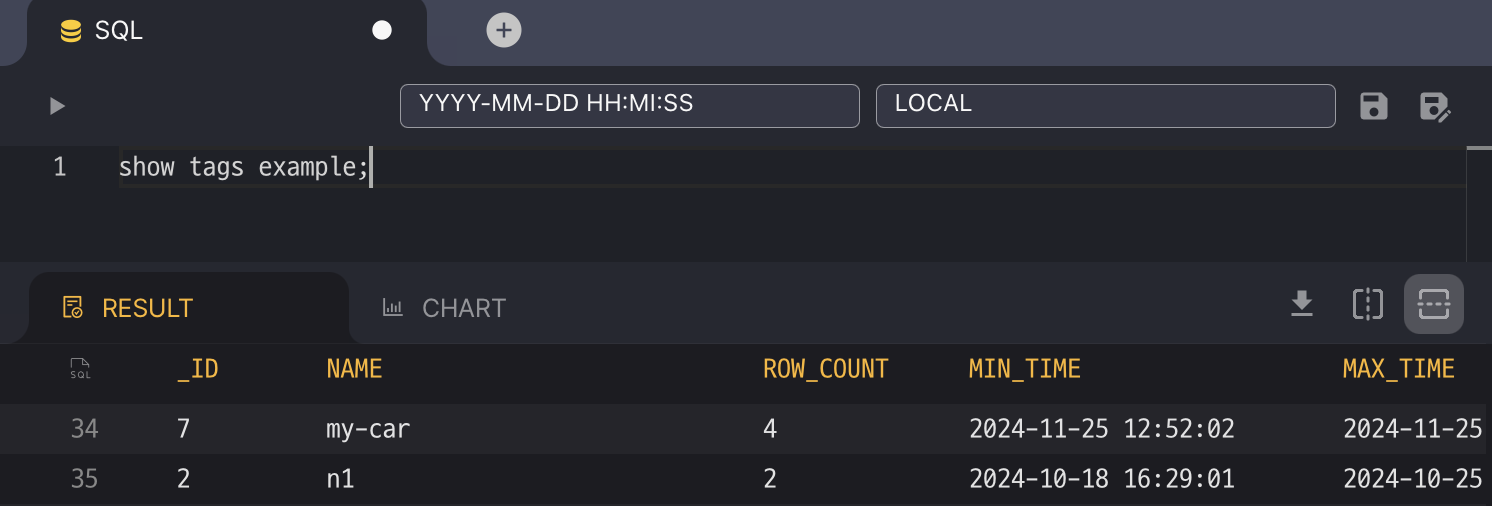
show tags table_name
show tags example;Query stored tags of the table, it works to TAG table only.
SQL Guide
The following section provides an overview of the core concepts and features of TAG tables.
For comprehensive details and additional features, refer to the DBMS References.