MQTT and RDBMS Bridges
This tutorial demonstrates how to receive JSON data from an external MQTT broker and store the data into another bridged database.
Preparation
We will use mosquitto as the external MQTT broker.
If you need to install mosquitto, please visit its homepage.
We assume that the mosquitto server is running on 127.0.0.1:1883.
Create TQL file
Create a TQL file to handle incoming messages from the external MQTT broker. Currently, the TQL script does not perform any significant processing; it merely receives the message payload and discards it.
Select TQL in a new tab to open the editor, and enter the following content.
STRING(payload())
DISCARD()
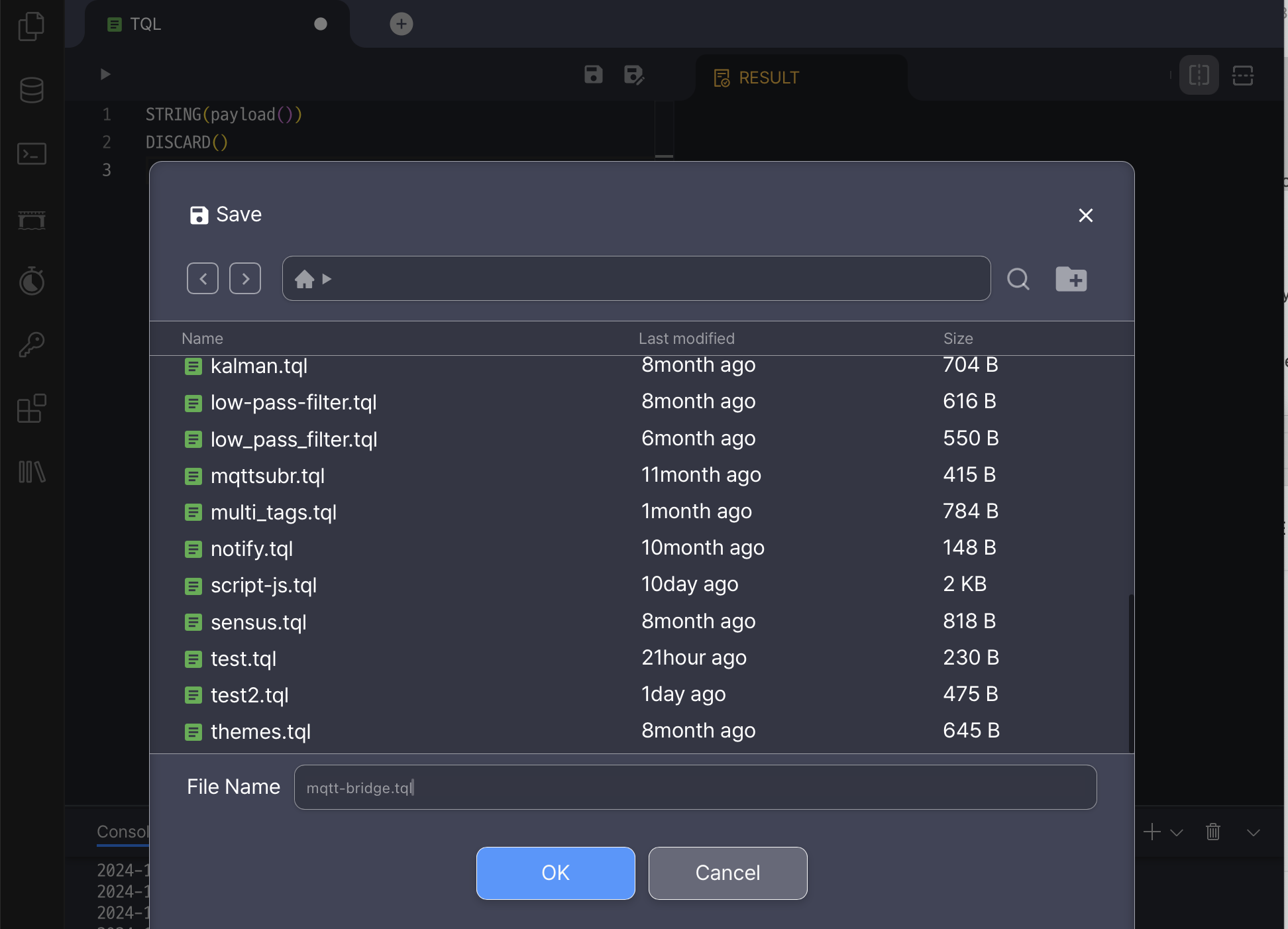
Click the  icon in the editor header, enter
 mqtt-bridge.tql in File name, and click Apply.
Define MQTT bridge
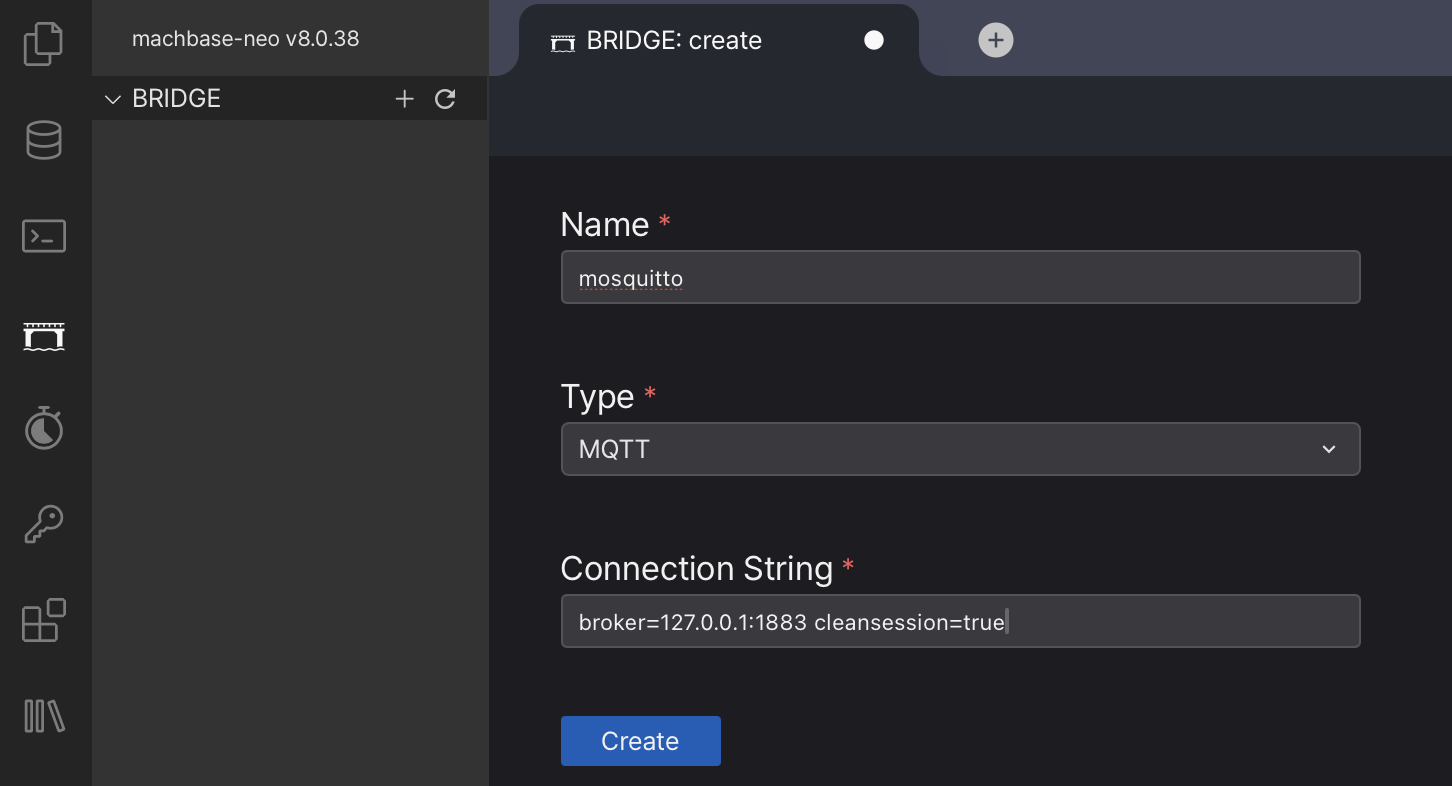
Let’s set up an MQTT bridge mosquitto in machbase-neo. Click the  icon in the left menu, click the
  icon in the
 BRIDGE header, enter the values below, and click Create.
- Name:
mosquitto - Type:
MQTT - Connection String:
broker=127.0.0.1:1883 cleansession=true
If you need more options for the connection string, please refer to the document here.
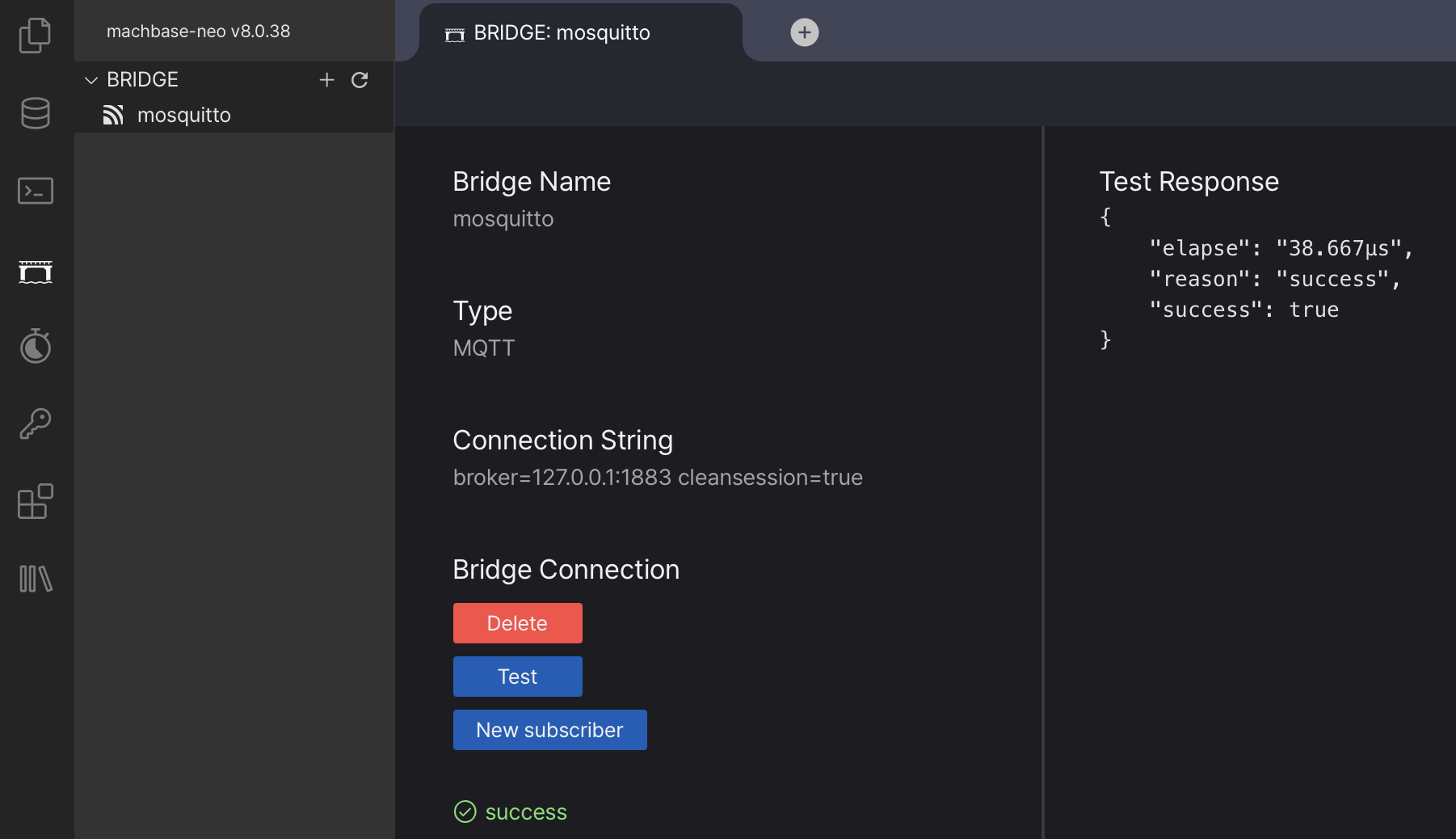
Select mosquitto in the BRIDGE list and click Test to check the connectivity. If you encounter any errors, adjust the Connection String until the connection succeeds.
Attach TQL to the MQTT bridge
After defining and testing mosquitto bridge, we can attatch the mqtt-bridge.tql TQL to the specific subject of the mosquitto broker.
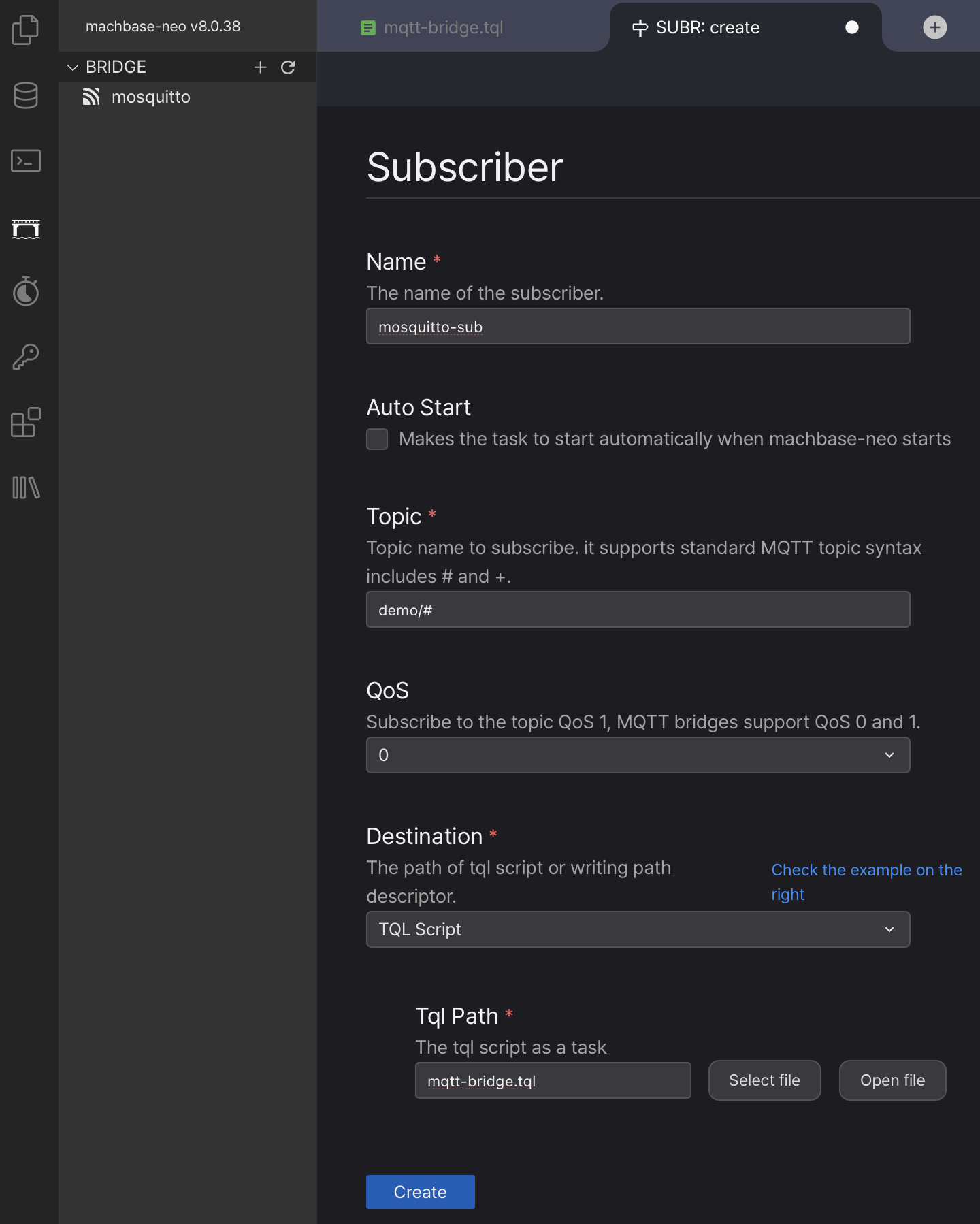
Click New subscriber below Test, set the fields as follows, and click Create.
- Name: Enter
mosquitto-subas the name for this subscriber. - Topic: Set the subscription topic to
demo/#. - Destination: Choose
TQL Scriptand entermqtt-bridge.tql, the file we created, inTql Path.
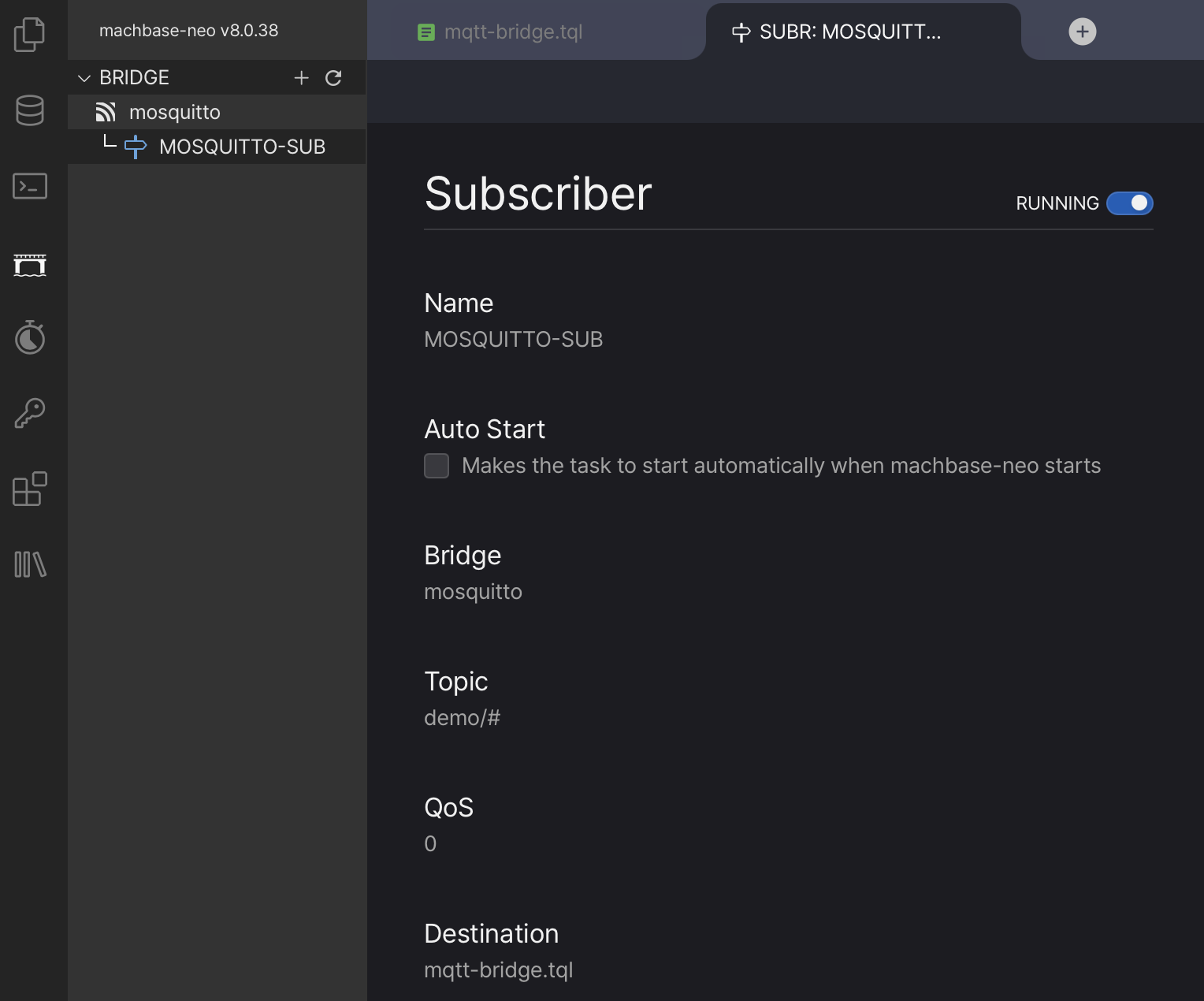
Select the new subscriber under mosquitto in the BRIDGE list, and turn on the switch at the top right to change its state to RUNNING.
Define destination DB bridge
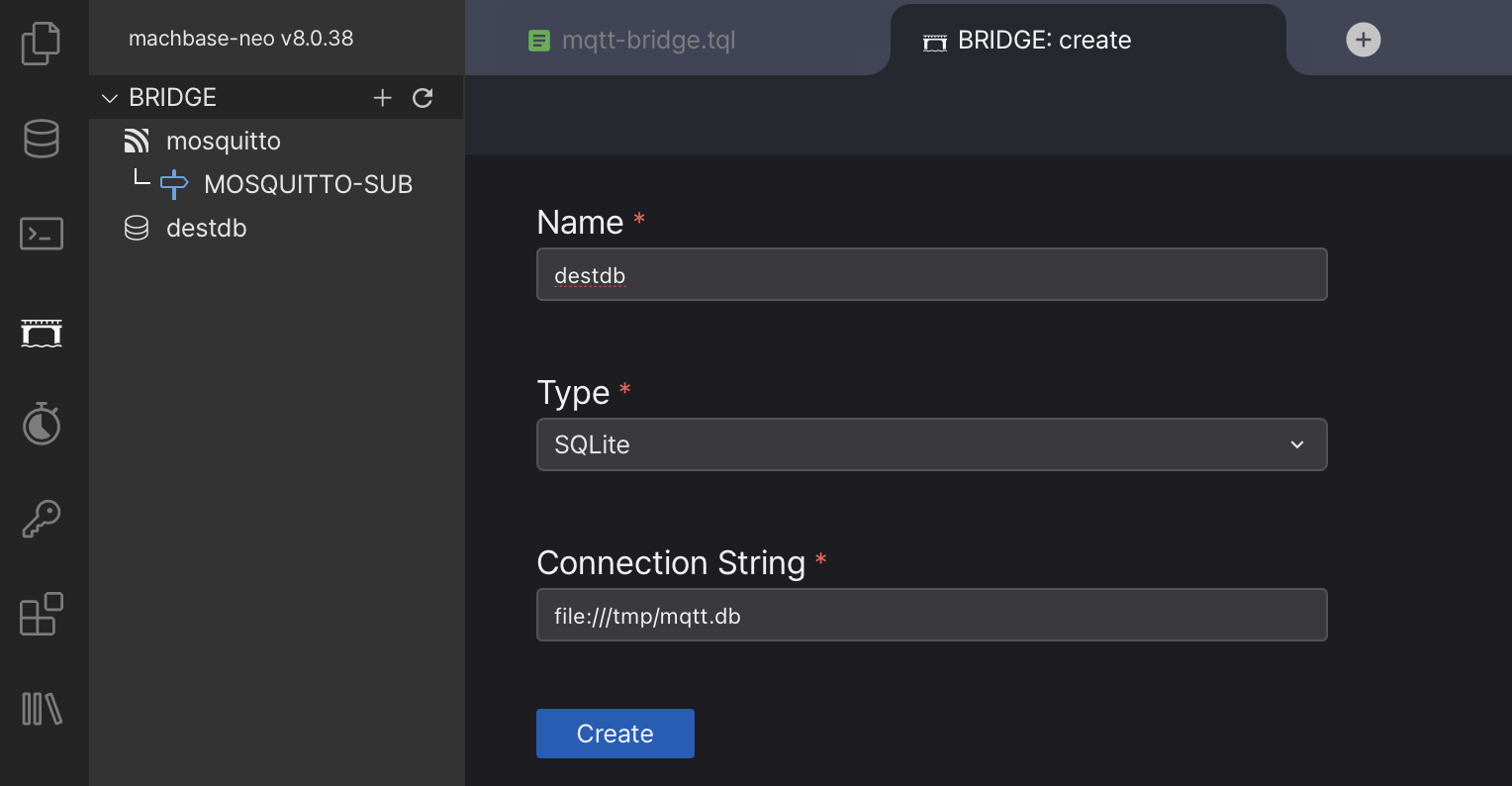
Let’s define another bridge to an external database. In this example, we will use SQLite. The process is similar for other types of databases, but the connection string options will vary depending on the database type. Click the icon in the BRIDGE header, enter the values below, and click Create.
- Name:
destdb - Type:
SQLite - Connection String
file:///tmp/mqtt.db
If you only want to store the incoming data in machbase-neo, you do not need to define another bridge to an external database.
TQL
Now, we are ready to write the actual TQL code that will execute whenever the mosquitto bridge receives messages published on the topic demo/# via the mosquitto server.
Line 2-11: This JSON string is used for testing purposes when you execute a test run of this TQL. If
payload()returns NULL because there are no “real” messages, the??operator takes the provided JSON string instead of NULL.Line 13:
SCRIPT({}, {})is a TQL MAP function which executes the given Javascript. Please refer to the reference document in here for the details.Line 43: In this example, the SCRIPT MAP function handles all the tasks. There is no need for additional processing in the SINK function, but all TQL scripts must end with a SINK function. Therefore, we use the
DISCARD()function to fulfill this requirement.
| |
Publish data
Prepare test data in a json file.
mqtt-test.json
{
  "timestamp": 1732653071807,
  "message": {
     "totalCar": "3683",
     "reason": "car",
     "total": "3956",
     "resetTime": "2024-11-25T23:00:00Z",
     "scenario": "Scenario 1"
  }
}
Publish a message to the topic demo/sensor_1 and the payload is the content of the file.
mosquitto_pub -h 127.0.0.1 -p 1883 \
  -t demo/sensor_1 \
  -f ./mqtt-test.json
Query bridged DB
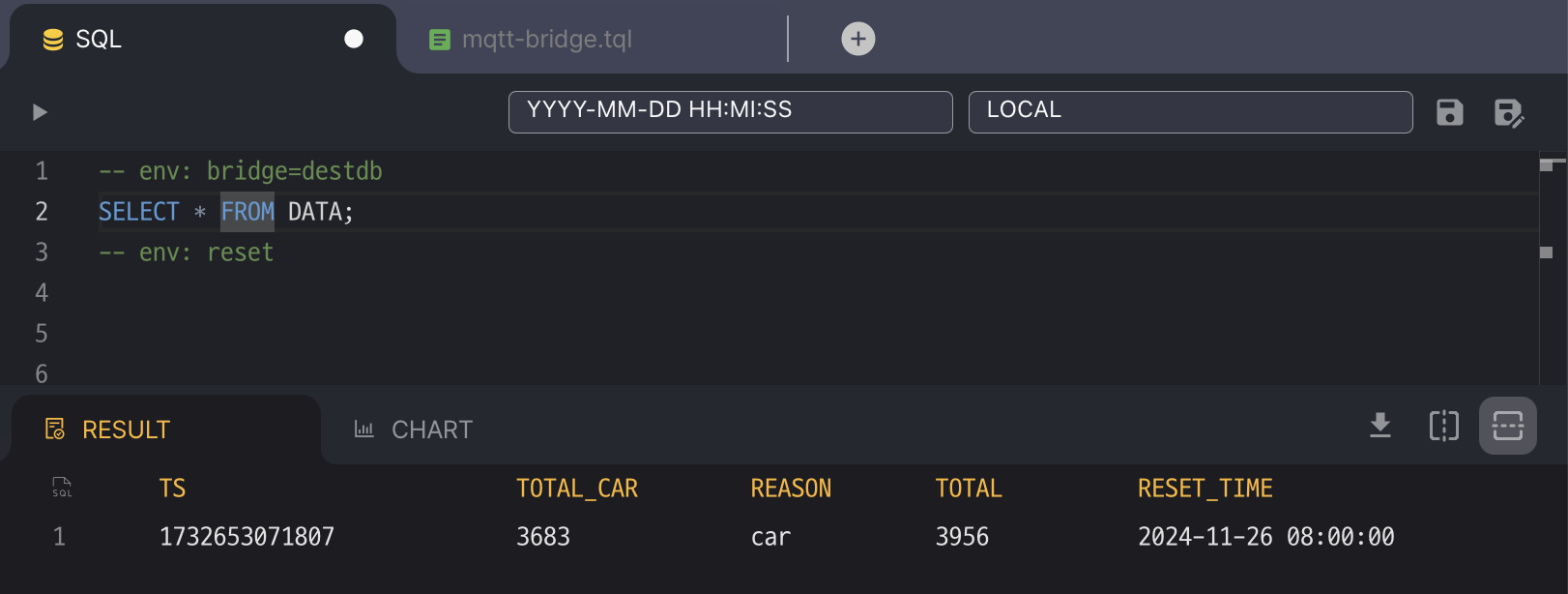
Verify that the data has been stored in the destination database. The SQL editor in machbase-neo allows you to execute queries directly on the bridged database. Use the -- env: bridge=destdb comment to instruct machbase-neo to run the query on the bridged database instead of the machbase-neo itself.
-- env: bridge=destdb
SELECT * FROM DATA;
-- env: reset